Capital Rebalancer
The Capital Rebalancer helps you spot which strategies are running out of capital and where idle money is sitting - so you can move it to where it’s needed.
Access it from Lab → Rebalance.
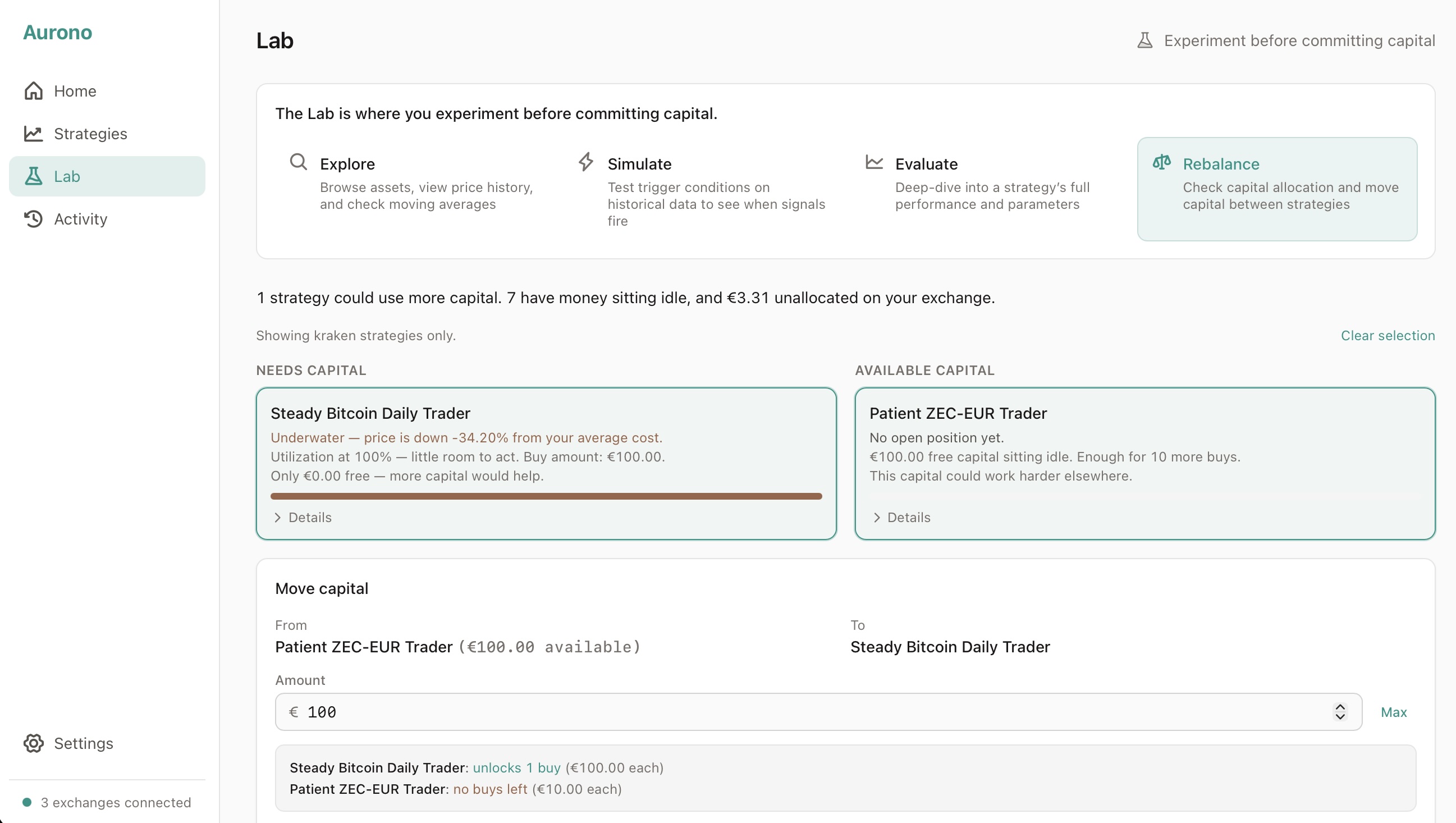
When to use it
Section titled “When to use it”- Your daily report mentions missed buy signals due to insufficient capital
- A strategy hasn’t traded in a while despite market movement
- After a crash, when buy-heavy strategies may have depleted their capital
- When you deposit fresh EUR on your exchange and want to decide where to allocate it
What you see
Section titled “What you see”The Rebalancer splits your strategies into two columns. Only active strategies appear - paused and archived strategies are left out, because the rebalancer is for moving capital between strategies that are actually trading. To add or take out capital from a paused strategy, use the Deposit and Withdraw buttons on its detail page.
Left: Needs capital
Section titled “Left: Needs capital”Active strategies that are running low, sorted by urgency. Strategies with zero buys remaining appear at the top - they’re stuck and can’t act on any trigger.
Each card tells you:
- Whether the strategy is underwater (price below your average cost)
- How many buying opportunities it missed this week
- How much it needs per buy
- How much free capital remains
Right: Available capital
Section titled “Right: Available capital”Three types of sources, sorted by how much they can spare:
- Active strategies with excess capital - low utilization, lots of free EUR, many buys in reserve
- Unallocated exchange balance - EUR on your exchange that no active strategy is using yet. The card hides when there’s less than €1 left, so you don’t open a deposit panel from an empty pot.
- “Deposit on exchange” - appears when no idle capital is available anywhere
How to transfer capital
Section titled “How to transfer capital”- Select a strategy on the left that needs capital
- The right column filters to show only sources on the same exchange (you can’t move capital between exchanges through Aurono)
- Select a source on the right
- A transfer panel appears - enter the amount you want to move
- As you type, you’ll see the impact in real time: how many buys the receiving strategy gains and how many the source loses
- Click Transfer to see a confirmation summary
- Click Confirm transfer to execute
The transfer happens instantly. Both strategies update and the view refreshes.
Understanding the cards
Section titled “Understanding the cards””Needs capital” cards
Section titled “”Needs capital” cards”Steady SUI-EUR Trader Underwater - price is down -6% from your average cost. Missed 2 buying opportunities this week. Needs €10 per buy. Only €0.24 free - more capital would help.
This tells you: the strategy is in the red, it wanted to buy the dip twice but couldn’t, and it needs at least €10 to be able to act on the next trigger.
”Available capital” cards
Section titled “”Available capital” cards”Patient Ethereum Trader Doing well - up +12% from your average cost. €200 free, hasn’t needed to buy in 14 days. Enough for 8 more buys.
This tells you: the strategy is healthy, the market hasn’t been volatile enough to trigger buys, and it has 8 buys worth of capital that could be deployed elsewhere.
Exchange balance cards
Section titled “Exchange balance cards”Bitvavo €150 available on the exchange, not assigned to any strategy.
This is EUR sitting on your exchange account that isn’t allocated to any strategy. You can assign it to a strategy that needs it.
The transfer panel
Section titled “The transfer panel”When you’ve selected both sides, the transfer panel shows:
- From and To with available amounts
- Amount input with a Max button
- Live impact preview:
- Steady SUI-EUR Trader: unlocks 3 buys (€10 each)
- Patient Ethereum Trader: 8 → 5 buys remaining (€10 each)
The confirmation screen repeats this with exact before/after free EUR amounts.
When you type more than the source has
Section titled “When you type more than the source has”It depends on which source you picked:
- Moving between strategies: the amount is capped at what the source strategy actually has free. Type more and you’ll see a red error and the Confirm button greys out - you can’t move EUR a strategy doesn’t have.
- Pulling from unallocated exchange EUR: there’s no hard cap. If you type more than the unallocated pot holds, a yellow warning shows up: your strategies together will be expecting more EUR than your exchange currently has. You can still confirm - the receiving strategy gets its allocation right away - but any buy that fires before you top up the exchange will be rejected. The dashboard shows a banner so you don’t forget.
Expand for details
Section titled “Expand for details”Each card has a Details toggle that shows:
- Free EUR
- Utilization percentage
- Buy amount per trade
- Symbol
- Exchange
Use this to verify the numbers or check which exchange a strategy is on.
Exchange filtering
Section titled “Exchange filtering”Capital can only move between strategies on the same exchange. When you select a strategy, the other column automatically filters to show only matching sources.
If you want to see all strategies again, click Clear selection at the top.
Sorting logic
Section titled “Sorting logic”Left column (urgency):
- Strategies with 0 buys possible (completely stuck)
- Then by missed buys this week (more = higher)
- Then by utilization (higher = more urgent)
Right column (availability):
- Most buys remaining first
- Then by free EUR amount
Important notes
Section titled “Important notes”- Transferring capital does not move funds on the exchange - it reallocates EUR within Aurono’s internal bookkeeping
- The exchange balance shown is your actual EUR on the exchange minus what Aurono has allocated to strategies
- You don’t need to rebalance constantly - only when capital is clearly misallocated
- After a transfer, the strategy can act on the next trigger in its regular evaluation cycle